
If when logging into the platform you can see “Team Activities” on the left navigation or on the dashboard page, you have been set up as a manager to other staff on the platform.

Selecting a link to “Team Activities” will take you to a page that will display all training data associated to your staff.
An Activity in the platform can be any type of learning resource. This includes e-learning, assessment or quiz, pathway, videos, images and documents. These are defined under Activity Type in any report tables displayed.
If an activity has been placed within a Pathway (A pathway is a collection of single Activities pulled together to make one overall activity) the Pathway column within the report table will display the Pathway title. If an Activity does not have a Pathway title, it has been assigned to the staff member as a single activity.
All Activities will display a Status. A Status is a what stage the Activity is at in terms of its completion.
No Data = The user hasn’t yet logged into the platform and therefore no data has been registered.
Registered = The Activity has been assigned to a user but not yet completed.
Completed = The Activity has been completed by the user.
Failed = Likely to be an Activity with a graded quiz or assessment and has been failed and not yet passed.
Passed = Likely to be an activity with a graded quiz or assessment that has been completed and passed.
Archive = The activity has been archived from the platform and no longer available to the user.

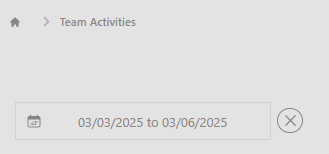
You can apply specific date periods to the information displayed on a table to refine the data to a specific point in time.
You can target specific users and data by typing keyword's into the “Search Rows…” field.

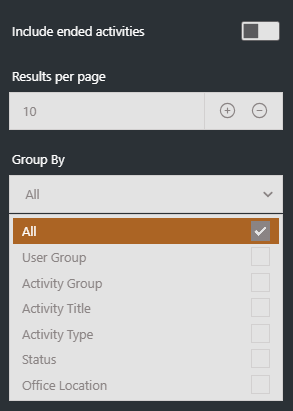
Filters can also be applied to group the data into specific clusters such as Officer Location, User Groups and Activity Types.
Selecting the “Envelope” icon will allow you to send in system notifications to your team.
Selecting “Users” from the tab at the top of the screen will display a full breakdown of all staff members within your team.
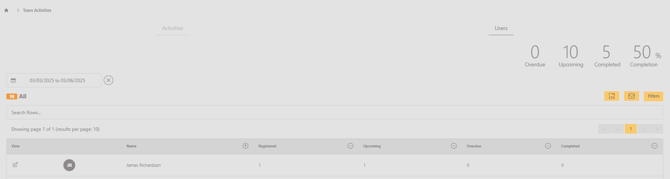
Next to each staff member you will see the following statuses…
Registered = The number of Activities assigned to the staff member.
Upcoming = The number of Activities that are soon to be completed.
Overdue = The number mandatory Activities that have defined completion dates that have expired.
Complete = The number of Activities completed by the staff member.
The information displayed within the table can be defined by a specific date period as mentioned previously.
Like the previous page, all data on this table can be filtered, exported and messages sent to the staff members displayed.
To view a staff members profile in more detail, select the pen icon next to staff members avatar.

This will open the Details page where information on the staff members account is shown. This includes information such as Line Manager, User Groups and Office Location. Here a manager is also able to reset passwords if required. Note, this feature will not work if SSO has been enabled on your platform.
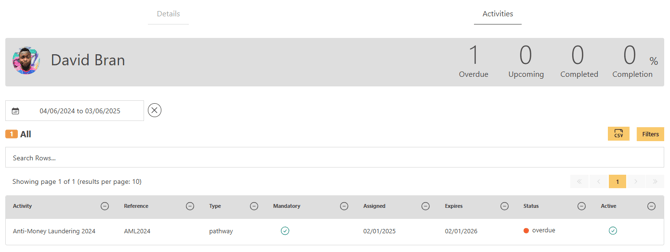
Selecting the Activities tab will display a full overview of the staff members activity records from the date period set.
If you have a staff member that is no longer part of your team, please reach out to your platform administrator who will be able to make the User Group and Line Manager adjustment.