
Upon logging into the application, you’ll land on your personalised Dashboard. The layout of this page is determined by the application's administrator, so its appearance may change periodically. The Dashboard serves as an entry point to different pages and features within the application. Below are descriptions of the most common widgets found on the dashboard, along with a brief overview of their functions.
Carousel – This feature enables the presentation of headline messages through either a manual or automated carousel format. Each image within the carousel can be linked to alternative pages or external websites.
Cards – Cards are utilized to display concise information blocks or to provide links to further pages or external sites.
Statistics – This functionality allows for the monitoring of learning activities, applicable to individual users as well as managers overseeing multiple employees. The data types that may be displayed include:
- Overdue – Activities past their completion date.
- Upcoming – Activities nearing their completion date.
- Registered – Activities assigned to a user, with or without deadlines.
- Completed or Passed – Activities fully completed.
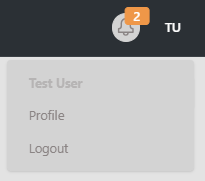
You’ll find the notification bell in the top right corner of the page, where messages about activity assignments and general app notifications will appear. After you’ve opened and read them, you can clear these notifications.
In summary, your dashboard is designed by your business to serve its specific needs, but above all, it functions as an entry point to the learning application.