- After logging into your platform, select the "User Management" tab located in the left navigation bar.
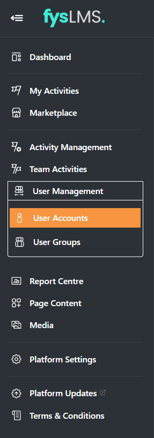
- From this tab, select the "Add / Import" button located on the top right of the page

- Enter your new users' account details into the input boxes on the side panel.
.png?width=382&height=923&name=User%20Management%20-%20Add%20user%20page%20(John%20Doe%20Details).png)
- Email - Valid email address of your new user, must be set to a unique value
- First Name - The new users first name.
- Last Name - The last name, or any remaining names, of the new user.
- Telephone - An optional field, enter the new users telephone number
- Office location - Select the office location from drop down box, can also type the letters in for a quicker search.
- User Group - Based from the User Groups set up on the platform already, each box is an interactable button that once clicked will let you select the appropriate option from a drop down list.
- Silent Account - This Yes / No toggle allows you to dictate if you want the account to receive notifications and emails from the platform or not, if set to 'Yes' their initial welcome email will be sent to your platform's support inbox and no further email notifications will be received.
- User Administrator - This Yes / No toggle dictates if the user should be given oversight over a specific User Group or not. once selected a drop down prompt will appear you can then select the relevent groups to have oversight of.
- Brand Administrator - This Yes/No toggle Dictates if the user should be given full administrator rights over the platform, allowing for account creation, course assignments and reporting functionality over all users.
- The user group must be created before you can create the user, please click the following link for further information on how to create a User Group.
- Once all Mandatory details have been filled in, select 'Save' in the top right to add the user to your platform.
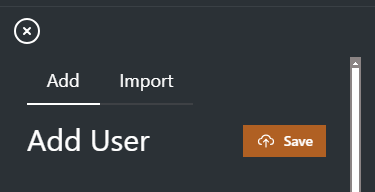
- Once selected, the user will receive an email inviting them to your platform and providing them with a username and a temporary password.
English