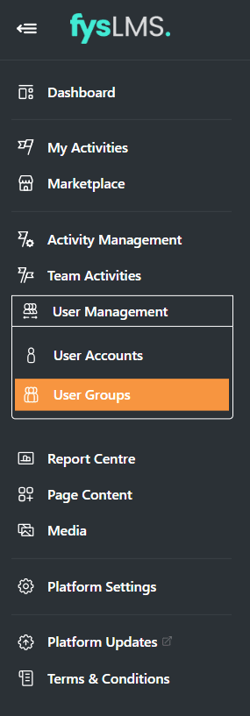
- Select the "User Management" tab located in the left navigation bar and then select the "User Groups" sub-tab in its dropdown bar.
- Select the "Create User Group" button located on the top right of the screen.

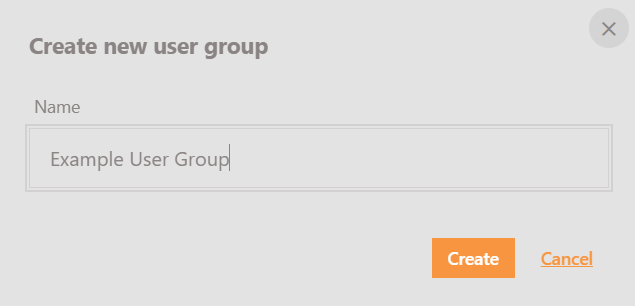
- Input a User Group Name into the prompt and select 'Create'.
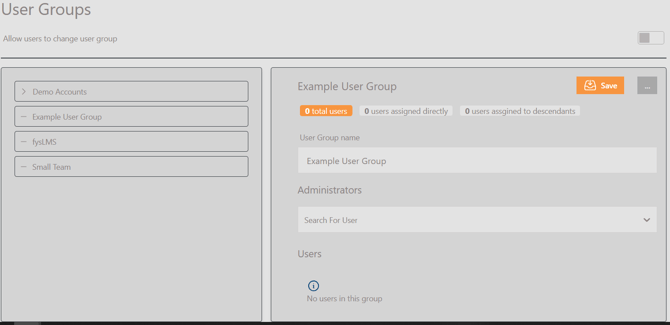
- Once created, you will be able to edit its details and assign an administrator from the current platform accounts.
- A User Group Administrator will allow for a user to have visibility over a teams learning activities as well some basic administrative functionality such as resetting passwords (if SSO in not in operation).
- To add a user as an admin for this new group, simply type the users name into the "Search For Users" box and select them from the drop down. If users have been already been assigned to this group, these will be visible.
- Once complete, select Save.
English