
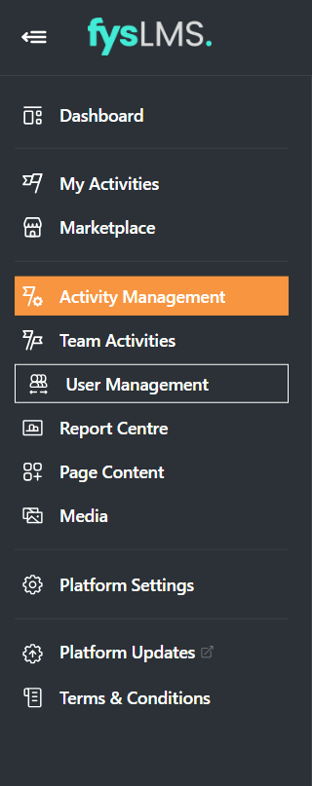
- Select "Activity Management" located in the left navigation bar.
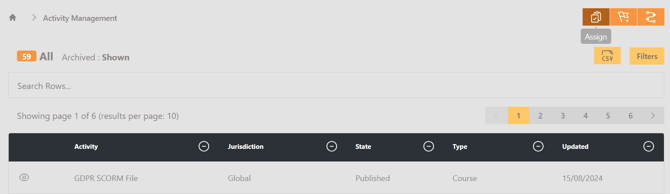
- Select the 'Assign' button on the top right of the page.
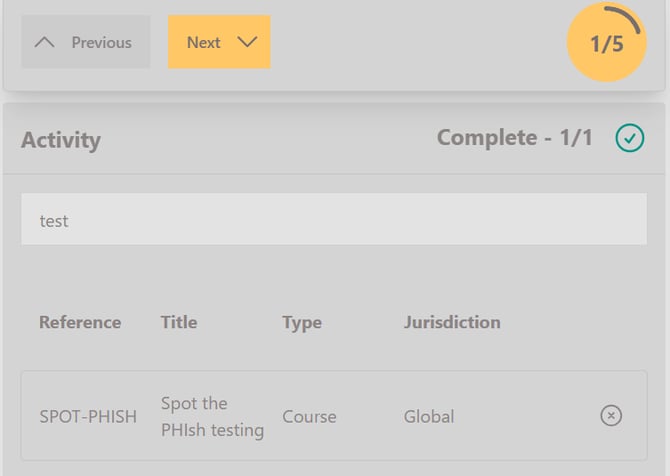
- Using the search bar, input either the activities name, jurisdiction, reference or course type and select the desired activity you wish to assign from the resulting dropdown. Once selected, select 'Next'.
- Select the assignment dates you would like, either by typing your desired values or the calendar dropdowns via the button on the right.

-
To have the course re-assigned on a specific schedule, choose the appropriate option in the Reoccurrence section above, which will arrange it according to the Assignment date provided.
-
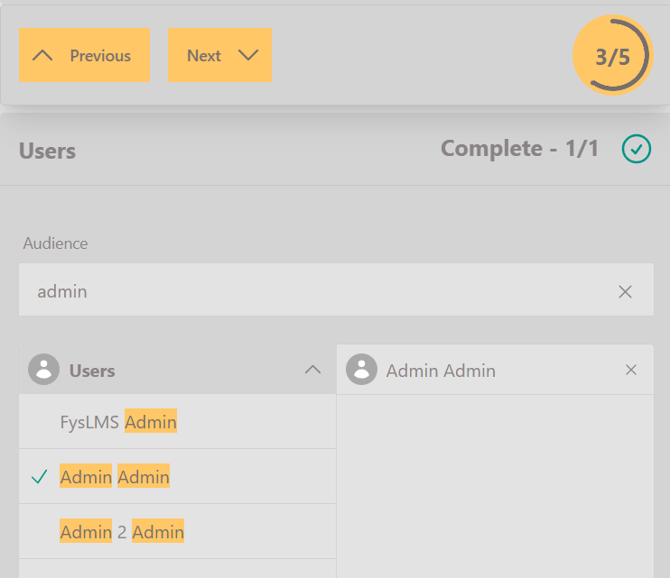
- Search for the user you want to assign the course to via the "Audience" search bar, select the appropriate name and then select "Next".
- The final stage of this process is to decide if you want notifications sent or not, toggling the "Send Email" slider will disable/enable a notification for this assignment. Once finished select "Next".
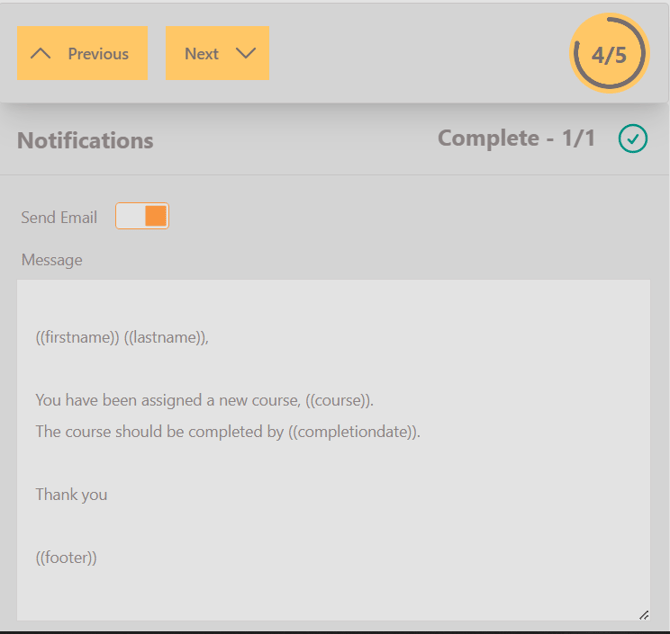
- If you wish to customise it before sending then you can also do this here.
- Confirm the details entered are correct and once happy select 'Assign'.
