
- Before logging into your platform, create a CSV excel file with the headers below and populate with your users information or download the import template shown in step 4 below.
- Email Address
- First Name
- Last Name
- Phone Number (Optional)
- Silent Account
- User Group
- Office location - Your user groups must be created within the platform before you bulk upload users, Please click the following link for further information on how to create a User Group.
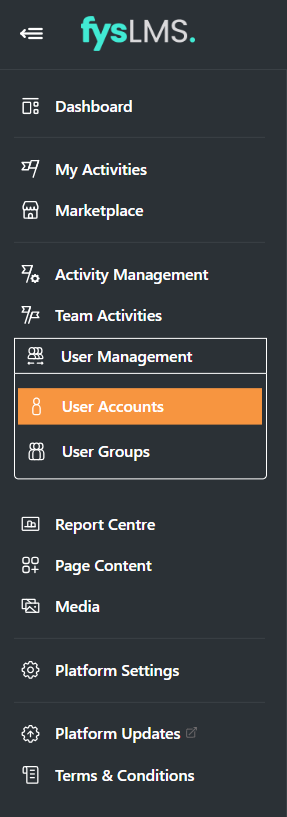
- With the user upload document now complete, login to the platform and the select "User Management" tab located in the left navigation menu, followed by the "User Accounts" tab.
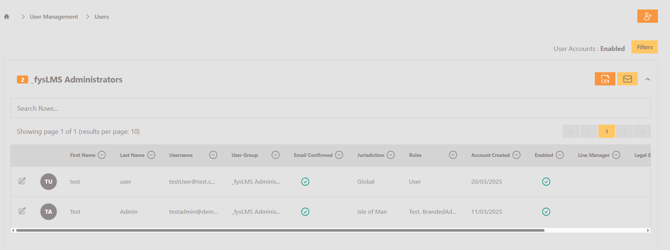
- Select the 'Add / Import' button on the top right of the page, followed by the "Import" tab.
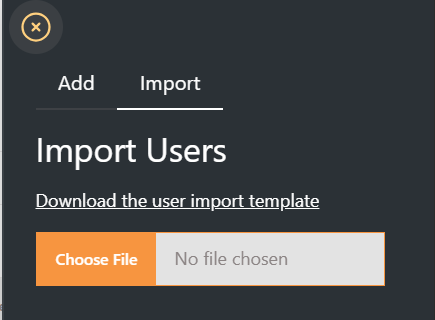
- Click the "Choose File" button and locate the CSV file you created, once found select "Open".
- If you have any conflicting or invalid user data, you will be taken to the "Re-validation" page. You will need to work through any incorrect entries with the debugging prompts assistance until you have complete valid user data.
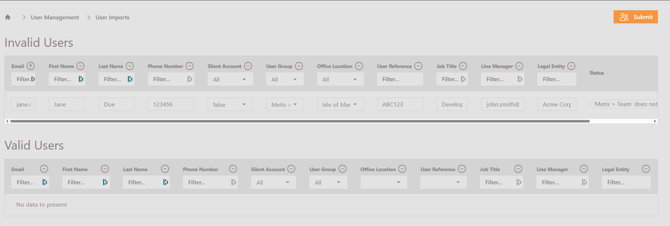
- Once all user information has been accepted by the platform, click "Submit".
Please note, once uploaded, users will automatically be emailed their account details via the verification email. So please ensure all messaging templates have been reviewed and any activities prepared and ready for user assignment.