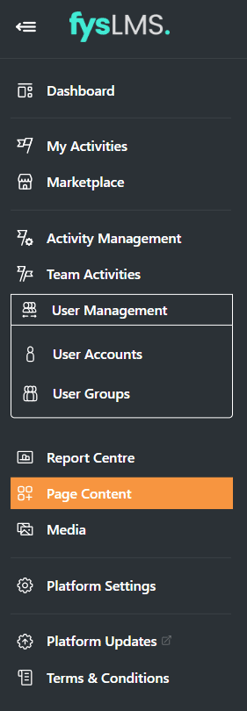
- After logging into your platform, select the "Page Content" tab located in the left navigation bar.
- From this tab, select the notepad button on the dashboard card.

- Once on this page, you will need to select the '+' button to open the widget selection panel.

- Within this panel the you will find the following:
- Button - Add a button to link to a page within the site or to another source.
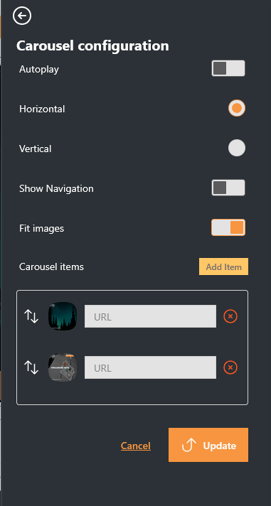
- Carousel - A rotating image gallery that allows you to choose images from its configuration menu and assign a URL link to each image for redirection to various sections.
- Card - Allows you to add both text, images and button links to a block.
-
- Recent Messages - Will show users notifications sent from the platform.
- Report - Allows you to add a report to the user or admin dashboard.
- Rich Text Editor - Restricted to text, this widget will allow you to freely add text to the site.
- Team RAG Status - Displays the course status for active courses on the platform for everyone on the same department as the user.
- Statistics - Display user, team, and platform statistics as individual data blocks.
- User RAG Status - Displays the course status for active courses on the platform for the user viewing the dashboard.
- Video - Ass YouTube or Vimeo videos onto the dashboard.
- Markdown - A simple way to format text that looks great on any device. It doesn’t do anything fancy like change the font size, color, or type — just the essentials, using keyboard symbols you already know.
- CPD Summary - Display the users completed CPD hours against their end of year target.
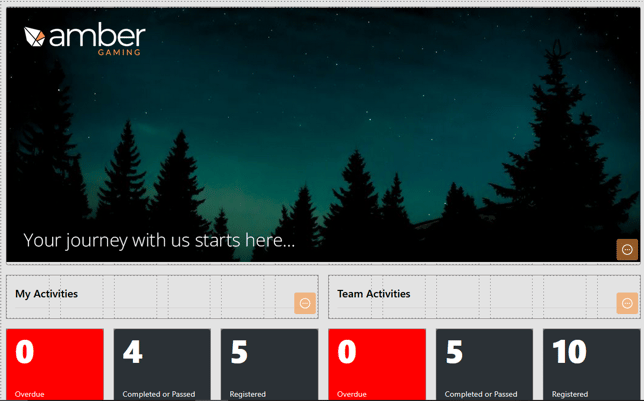
- You can edit the values of each card by clicking the (...) button and then interacting with the settings cog found there.
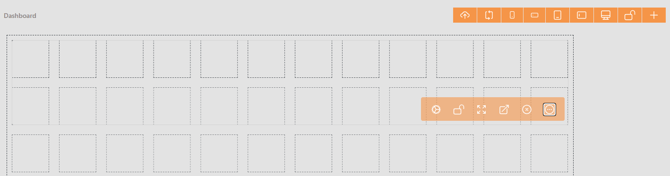
- Follow the steps needed for the selected widget and click 'Accept' to apply any changes to the page.
- Repeat adding and editing widgets until you are happy with the layout and content of the dashboard. Select the save icon on the top right of the screen to apply the changes to the live dashboard.