
Please note that whilst the site is set up to be WCAG 2.1 compliant and although steps have been taken to keep the site compliant with any changes made to the colour scheme, it is possible that any changes applied could affect your sites accessibility where edits are made to affect contrasting areas.
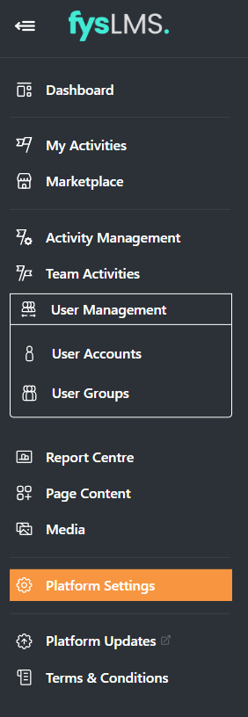
- Select the "Platform Settings" tab on the left navigation menu.
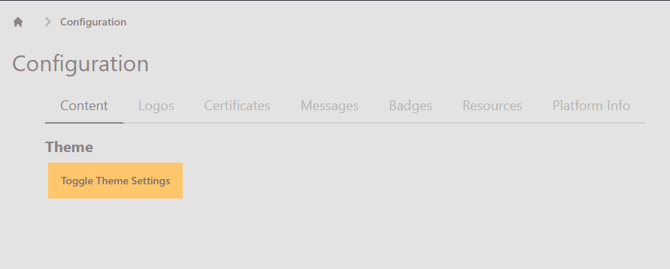
- Select the 'Toggle Theme Settings' Button seen on the first page you load into.
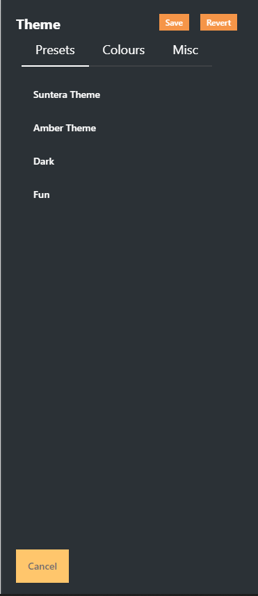
- Within the menu, there are three different options to select, for full customisation options, select "Colours".
- Presets - A preset colour theme created by our team to help set up the site in a quick and appealing way.
- Colours - A list of all editable colours and their associated attributes on the site.
- Misc - Miscellaneous options that would affect the design of your platform such as button edges, animation times and the boarders.
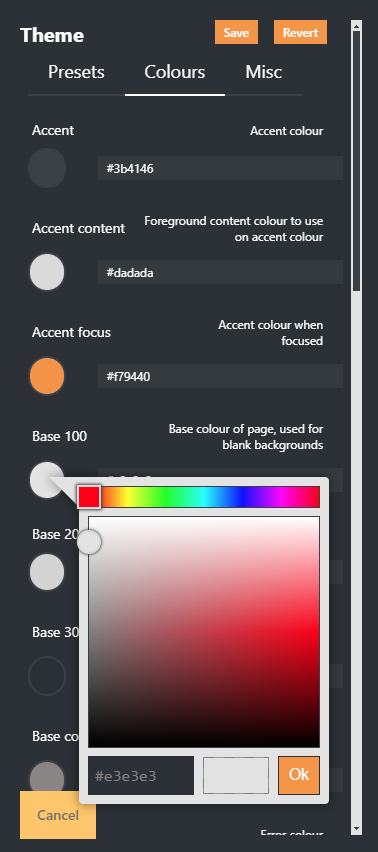
- Within colours you can start to change the preset colours you want and see the effects live on the platform. These edits will happen live but will only affect your view of the platform whilst you are editing them.
Next to each of the button sets is a short description of what they are affecting. Reading these can help assist as you experiment and change to your desired outcome. - You can edit the colours either by selecting the coloured circle beneath the name and moving the resulting drop down slider or by manually inputting the hexacode colour value within the input box.
- Once you are happy with the changes made, select 'Save' to overwrite the preset currently used on your platform. This will affect all other users on your platform.
- If you would like to revert back to the previous preset theme, just head back into 'Preset' and select one of the options available.