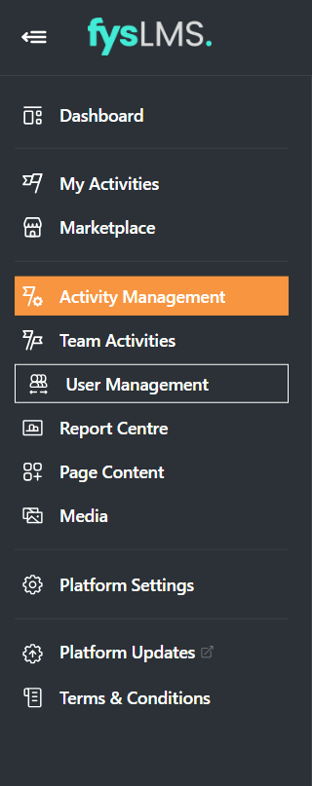
- Select the "Activity Management" tab on the left Navigation menu.
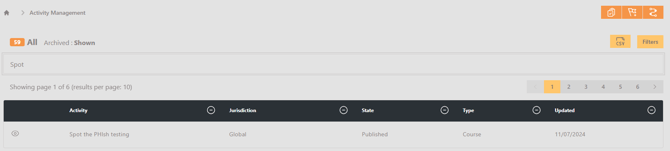
- Use the search bar to locate the desired activity you want to publish to the Marketplace.
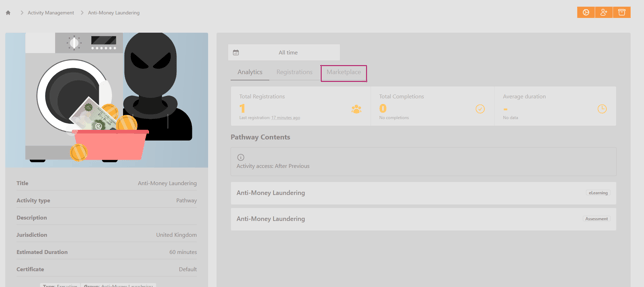
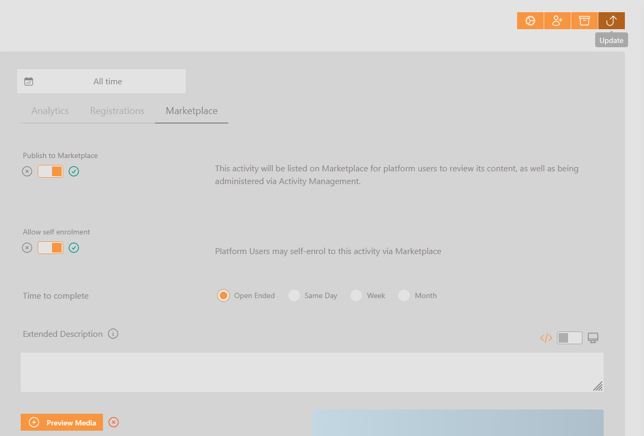
- Select the "Marketplace" sub-page via the tab menu.
- Once here, you will be able to customise how the activity will appear on the marketplace, below are details for the options found.
- Publish to Marketplace - a simple toggle slider that will publish / unpublish the activity on the Marketplace affecting if users can see it or not.
- Allow self enrolment - Determine if the users when viewing the activity on the Marketplace are able to enrol onto the course themselves or if this will require admin oversite.
- Time to complete - Primarily relevant when self-enrollment is enabled, this option permits you to define the duration available for users to complete the activity before it is marked as overdue. An open-ended setting will provide an extended end and completion date, ensuring users are not prompted for completion at any time.
- Extended Description - Allows you to input a unique description for the Marketplace activity.
- Preview media - Sets the images used for this Activity on the Marketplace.
- Select "Update" at the top right of the screen, this will publish the activity to your marketplace page.
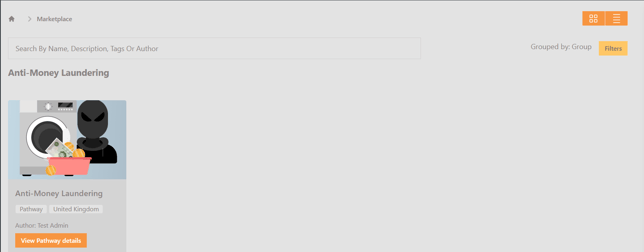
- Once published, the activity can be located on the "Marketplace", accessed via the left hand navigation menu.