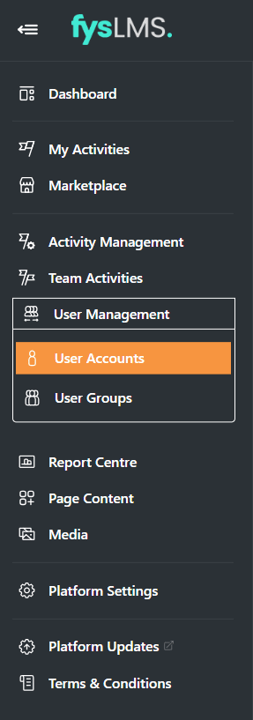
- Select "User Management" located in the left navigation menu, followed by "User Accounts" in the revealed dropdown box.
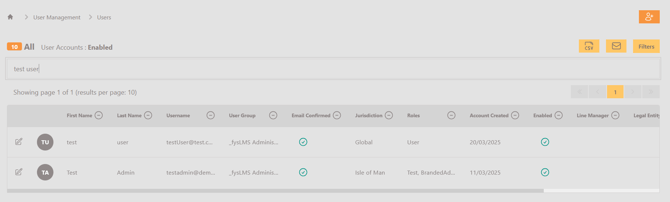
- Using the Search bar and filters, locate the User account you need to reset the password for and select the symbol to the left of the user image.
- Type a new password into the "Reset Password" box. Ensure the new password meets the requirements specified.
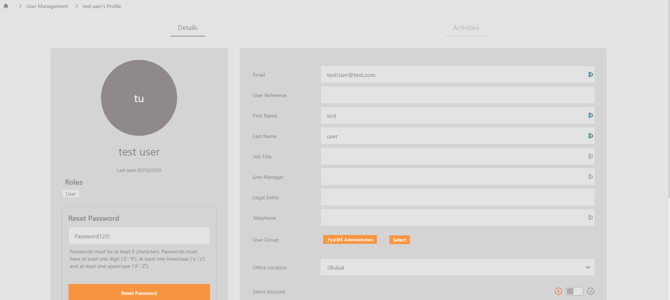
- Select "Reset Password".
- A prompt will appear at the top of the screen informing you of a successful reset. If you have any issues, ensure the password meets the requirements specified and try again. Contact your account manager if any further issues persist.