
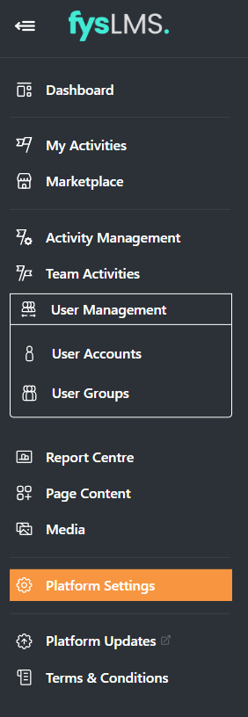
- Select the "Platform Settings" tab in the left navigation menu.
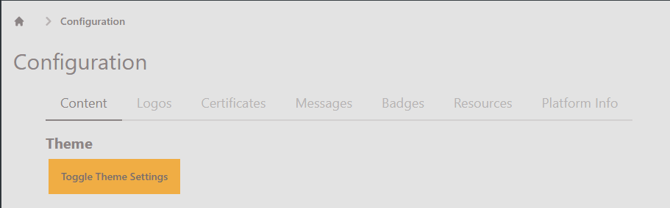
- Select the 'Logos' sub menu from the top navigation bar.
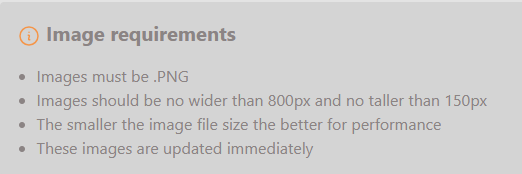
- Keeping in mind the image requirements for the logo, click the "Upload image" button for the desired section you want to update and select the image file you want.
- Site logo - Logo currently used on the top left of the page and on the login prompt.
- Certificate Logo - Logo currently used on the after course completion certificates.
- App logo - A smaller resolution logo, this will be used on the taskbar's image and if downloaded the App shortcut for this platform.