
The media page supports most file types. If you find you're having issues due to the file type you're attempting to upload, please reach out to your account manager.
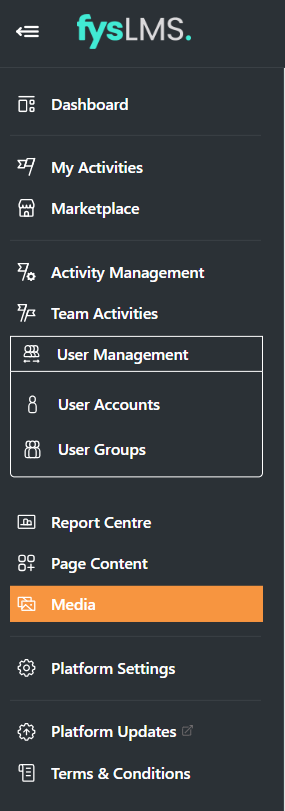
- Select the "Media" tab located in the left navigation menu. All previously uploaded media items will appear in the order they were most recently uploaded.
- Select the "+" button located in the top right corner of your screen.

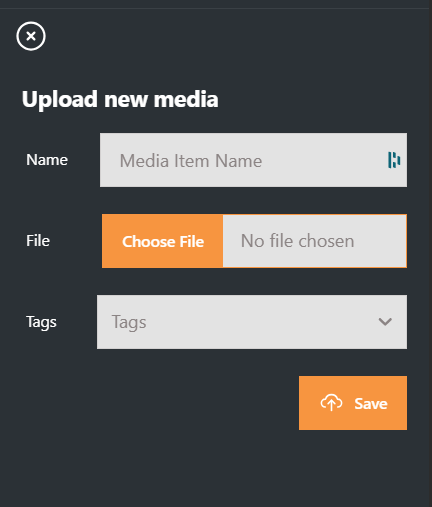
- In the revealed side drawer, select the 'Choose File' button seen below and locate your file on your machine.
- Once the file is located, select it and select "Open".
- With the file selected, input the desired Name and any applicable Tags. Tags will make locating media much easier once a full library of assets has been created.
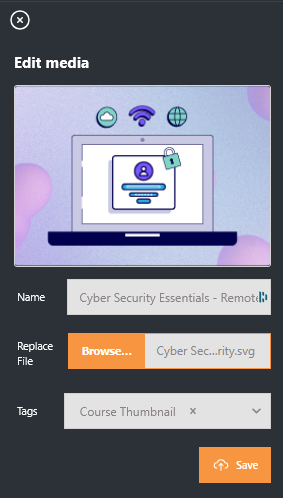
- After you are happy with the media and titles added, select the "Save" button to upload your media onto the platform.
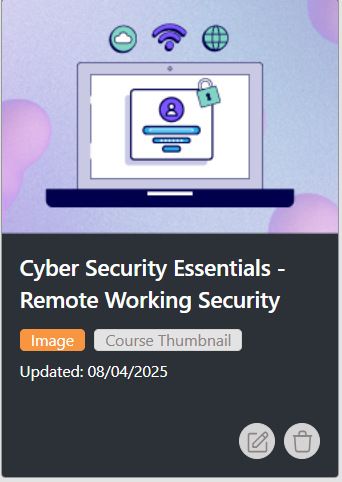
- Once uploaded the file will appear in the main media page.