
This can be done in a few different ways. This article focuses on the 'team activities' window using filters.
- Select the "Team Activities" tab on the left navigation menu.

- Select the "Filters" button.
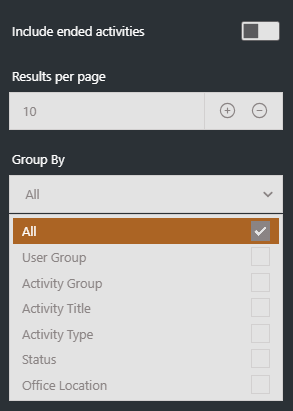
- Change your "Group by" setting from 'All' to 'Status'.
- Then as a sub-group, select all options excluding 'Passed' and 'Completed'.
- The selected sub-groups are then displayed as separate collapsible sections on the page which can be expanded and looked through as desired to find the information needed.

- If desired, you can then export the table for each sub-group by clicking their "CSV" button.
The below section is the walkthrough guide for locating the same assessment data but through the Report Centre.
- Select the "Report Centre" tab on the left navigation menu.

- Select the 'Build Report' button at the top right of the page.
- Select the "Templates" sub menu.

- Select the desired template. For the purpose of the is article, we will use 'Outstanding Training'.
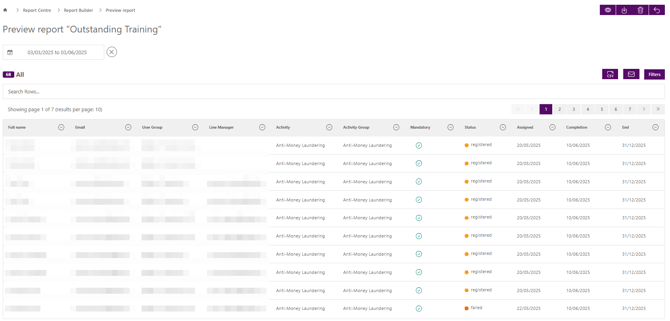
- Select the "Outstanding Training" report option. Below is an example of the type of data that would be displayed. You can clearly see those users that are still showing as being registered or failed.
- Select the "Save to Report Centre" button at the top right of your screen.
- Once saved, select the "Send report" report button.
- From the pop-up box, input the recipients email address. Note -Table reports will cannot be sent in image form.
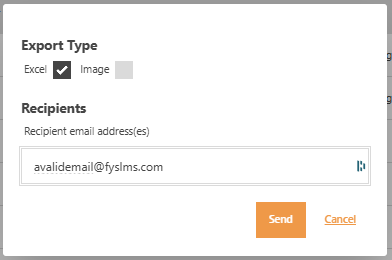
- Select "Send".