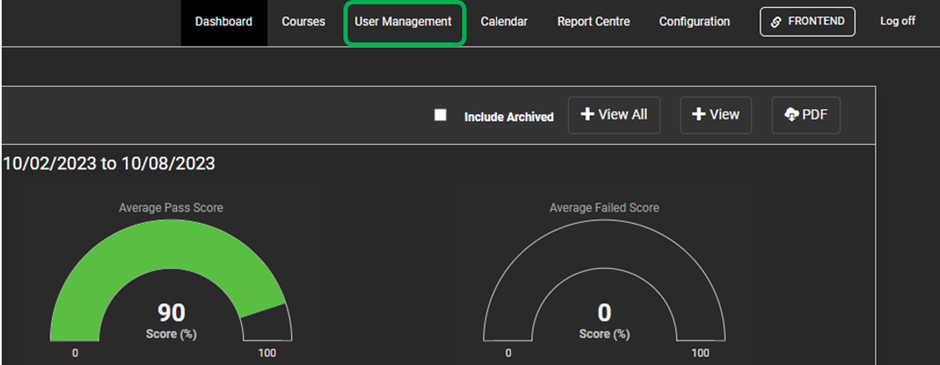
- Log into the "Administration" site, select the "User Management" tab.
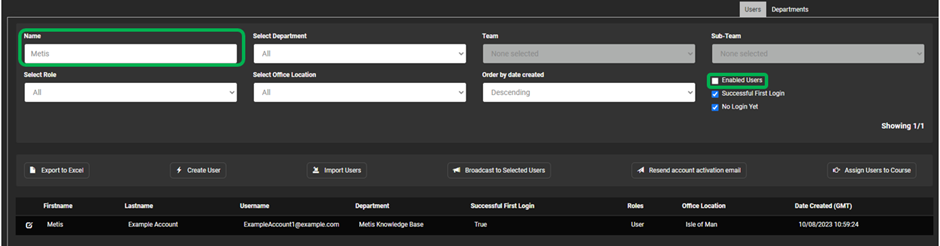
- Search for the user’s account, ensuring that the “Enabled Users” box is unticked.
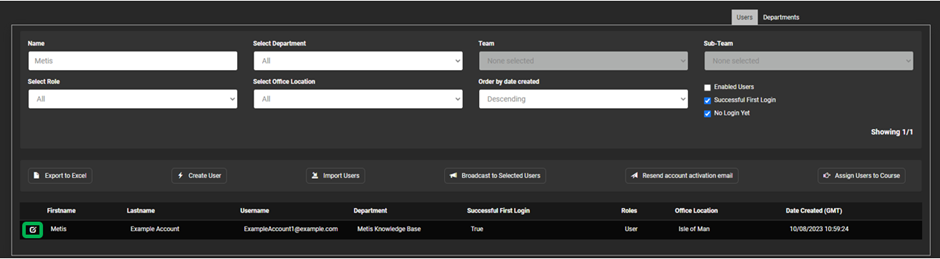
- Select the user's account to enter the "User Overview" page.
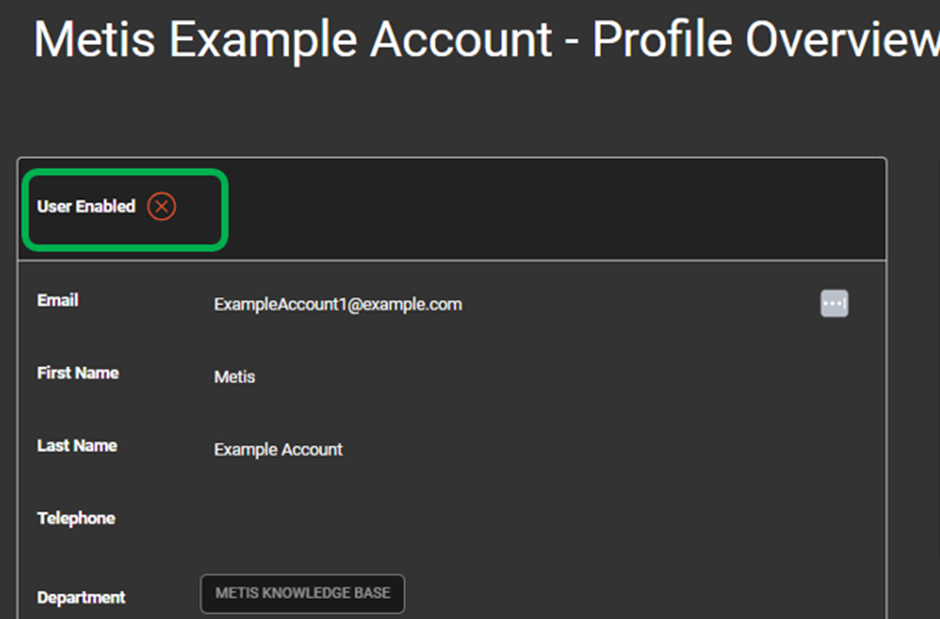
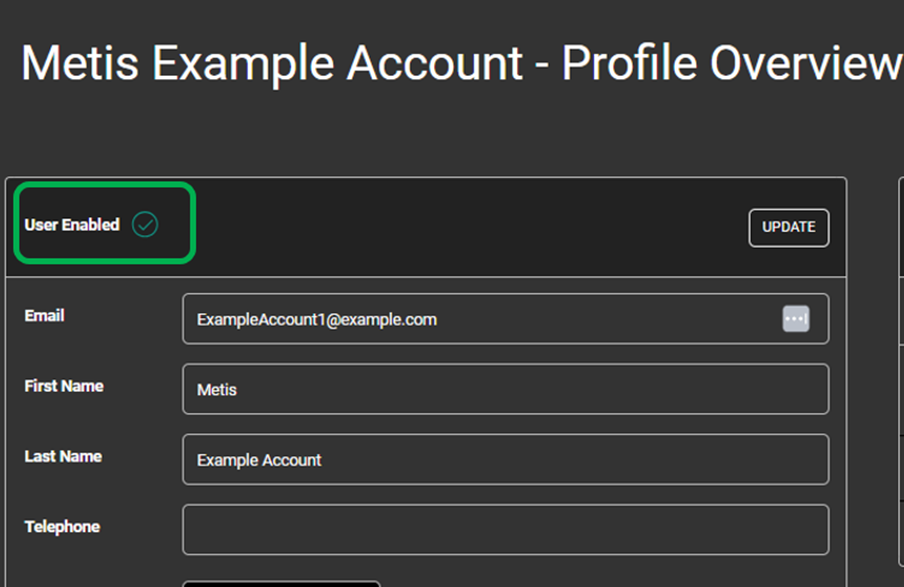
- Select the "X" icon next to "User Enabled" to un-archive the user's account.
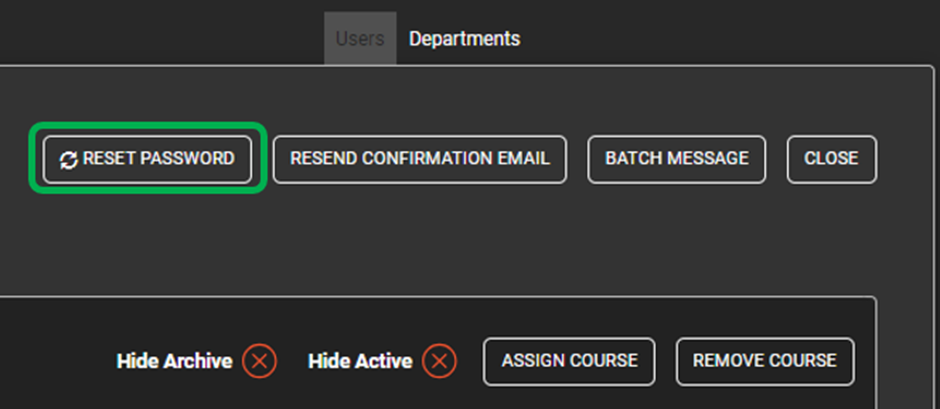
- Reset the password for the account, ensuring it is a minimum of 8 characters long, including at least one number, an uppercase letter, and a special character (E.G. Passw0rd! or Ex@mpl3). Make a note of this password as you will need it later.
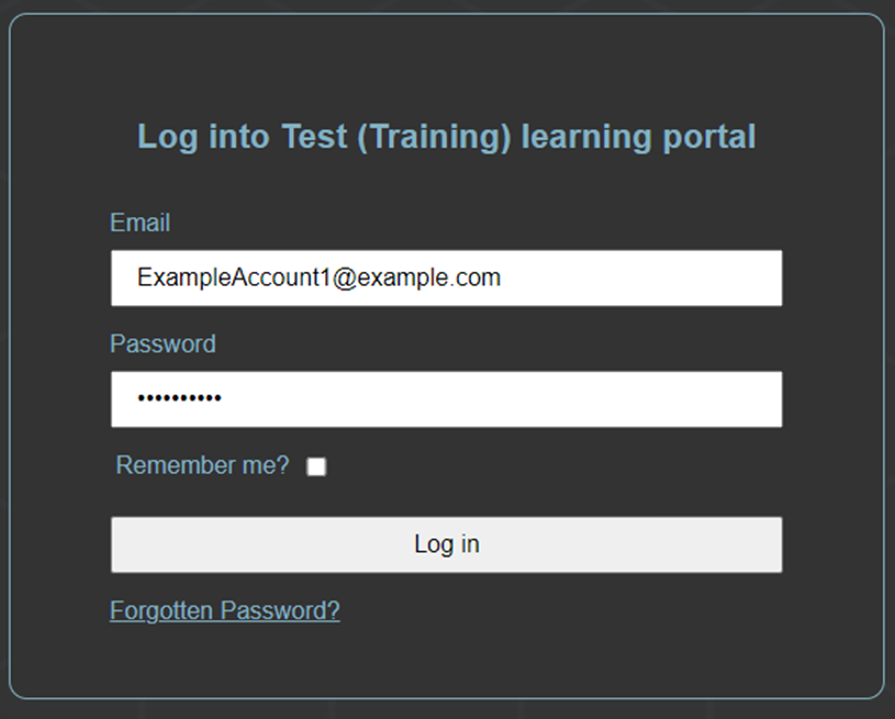
- Log out of your compliance portal and once out, log into the portal using the user's account for the certificates you are wanting to receive.
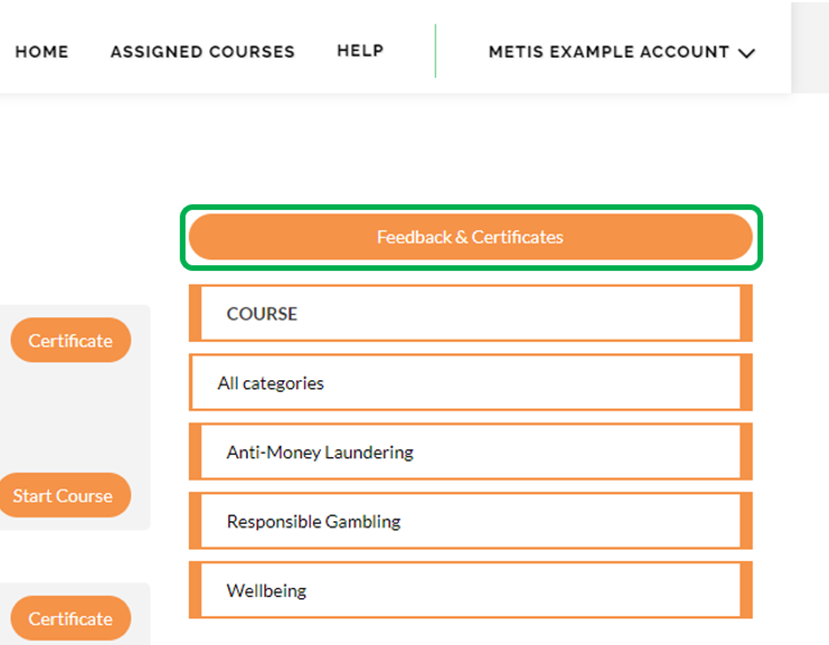
- Once logged in, select "Assigned Courses" from the navigation bar.

- Select the "Feedback & Certificates" button.
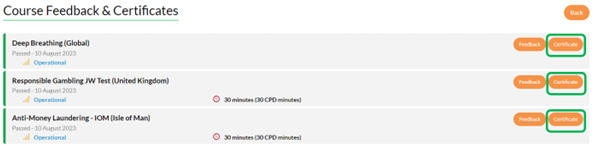
- Open the certificate of any desired courses by selecting the "Certificate" button.
- Confirm the details on this certificate are correct then select the "PDF" button to download the certificate.
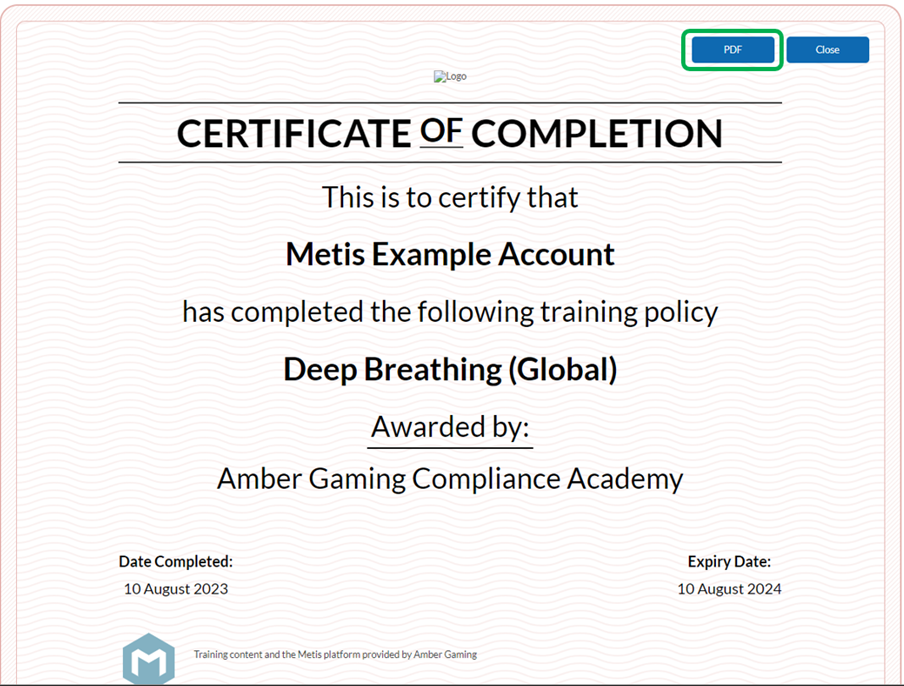
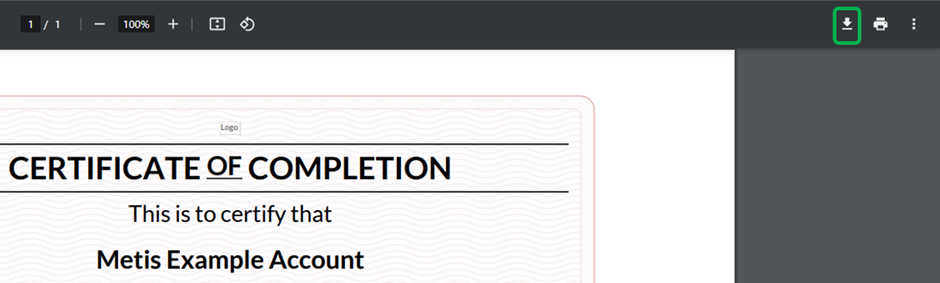
- In the output page, click the download icon and select the file location you would like to safe the certificate to.
- Once all certificates have been downloaded, you will need to log out of the user's account and back into your original Admin account. Following this, enter the "User Overview" page again, using steps 1 through to 4 and then disable the user's account by selecting the "tick icon". You will know this is complete as the tick icon will be replaced by a cross.
English
![MetisLogo_Filled_Short.png]](https://www.metis.support/hs-fs/hubfs/MetisLogo_Filled_Short.png?height=50&name=MetisLogo_Filled_Short.png)