![MetisLogo_Filled_Short.png]](https://www.metis.support/hs-fs/hubfs/MetisLogo_Filled_Short.png?height=50&name=MetisLogo_Filled_Short.png)
Please note, this is not a standard feature on your administration site.
To get this functionality added to your administration site, please get in touch with your account manager.
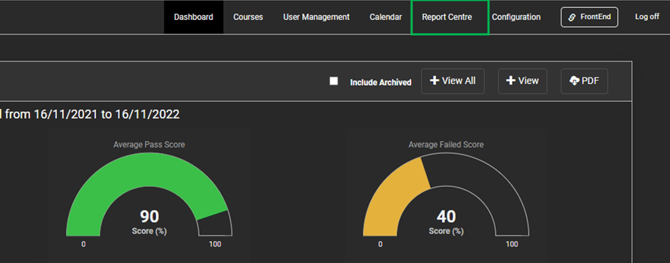
- After logging in to your “Administration” Site, select the “Report Centre” tab.
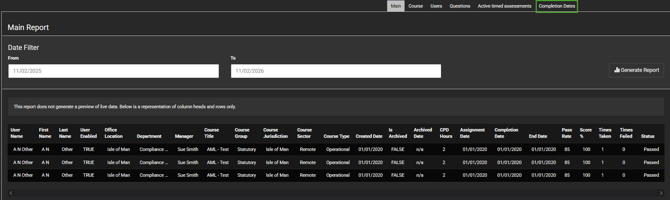
- From here, select the “Completion Dates” tab shown below.
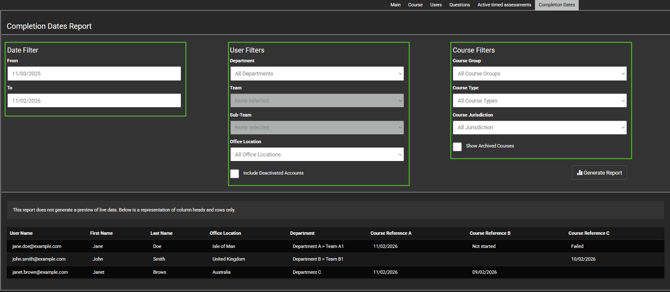
- Apply any filters required to the report.
- Select "Generate Report" button.
- Enter the email address that you would like the report to be delivered to, then select the "Email report" button. The report should arrive at the designated inbox within seconds.

The Completion Date report contains the date and time that each course was completed for all users on your site. Below are the various fields the report captures.
- User Name: The email provided for each user when their account was created.
- First Name: Current first name stored on the site for each user.
- Last Name: Current last name stored on the site for each user.
- Office Location: Current office location stored on the site for each user.
- Department: Current department stored on the site for each user.
- Course status: Status of the course for each user, the course is identified via the course reference in the top row and uses the following status's to display the users progress.
- Date: A date and time in the field for the user (31/12/2030 00:01) displays the time and date the user passed the course successfully.
- Failed: Indicates the user has attempted the final test, but has unfortunately failed.
- Started: Indicates the user has started the course but is yet to complete a test.
- Not Started: Indicates that the course has been assigned to the user but not started yet.
- Blank cell: A blank cell indicates the course has not been assigned to the user and therefore no data has been captured at the time of generating the report.