![MetisLogo_Filled_Short.png]](https://www.metis.support/hs-fs/hubfs/MetisLogo_Filled_Short.png?height=50&name=MetisLogo_Filled_Short.png)
Please note, This is not a standard feature on your administration site.
To get this functionality added to your administration site, please get in touch with your account manager.
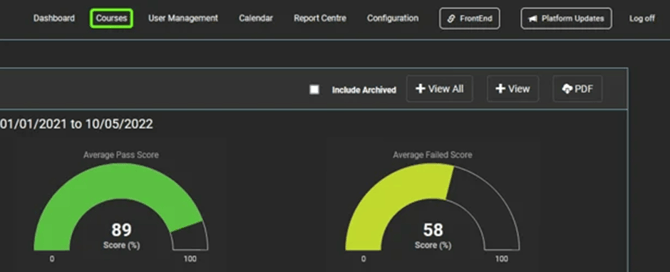
- After logging in to your "Administration" site, select the "Courses" tab.
- Select any filter you would like to apply to your report such as "Course Group", "Course Type" or "Jurisdiction". Alternatively, you can leave these as is to generate information about all courses from your site.
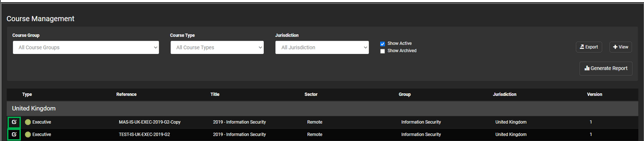
- Once you have applied any desired filter, select the "Generate Report" button.
- Enter the email you would like the report to be sent . Depending on the size of the file, this can take a short while to be generated but no longer than 5 minutes.

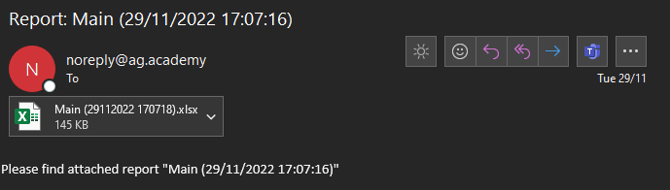
- Once the report has been received, it should resemble the example displayed below.