![MetisLogo_Filled_Short.png]](https://www.metis.support/hs-fs/hubfs/MetisLogo_Filled_Short.png?height=50&name=MetisLogo_Filled_Short.png)
Please note, This is not a standard feature on your platform.
To get this functionality added to your administration site, please get in touch with your account manager.
To link a document you wish to upload to the site, please read the following "how do I upload media" guide through this link, which will cover linking documents.
To learn how link to external documents, please continue reading.
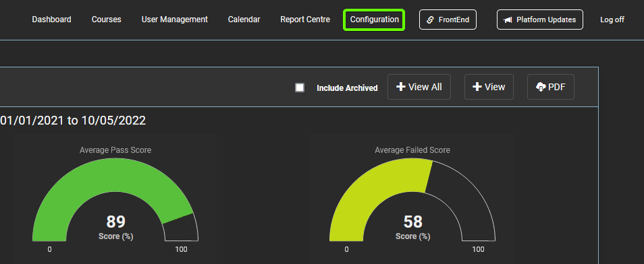
- Once logged in to the "Administration" site, select "Configuration" tab.
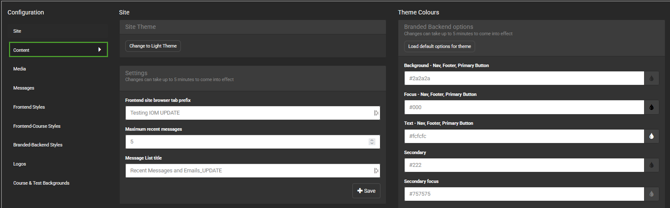
- From the options on the left, select the "Content" tab.
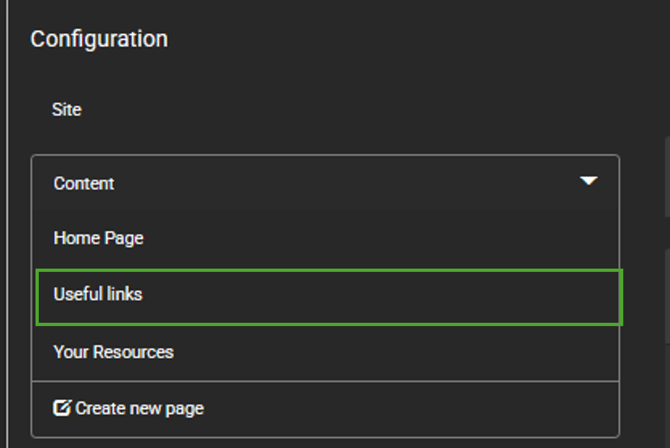
- Select the page you would like to add a link to. For this example, we will be using the "Useful Links" page.
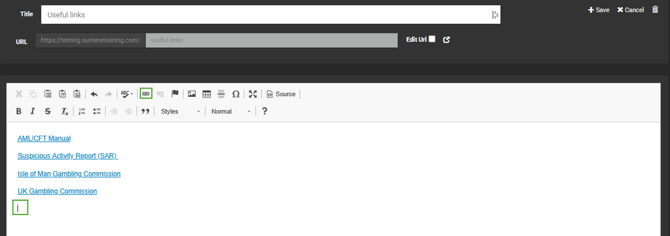
- Using the editor box on screen, select where on the page you would like the link to be and then select the link button as highlighted.
- Enter the URL for the external document in the "URL" box and give it a display name if you would like it it to appear as something other than the link.
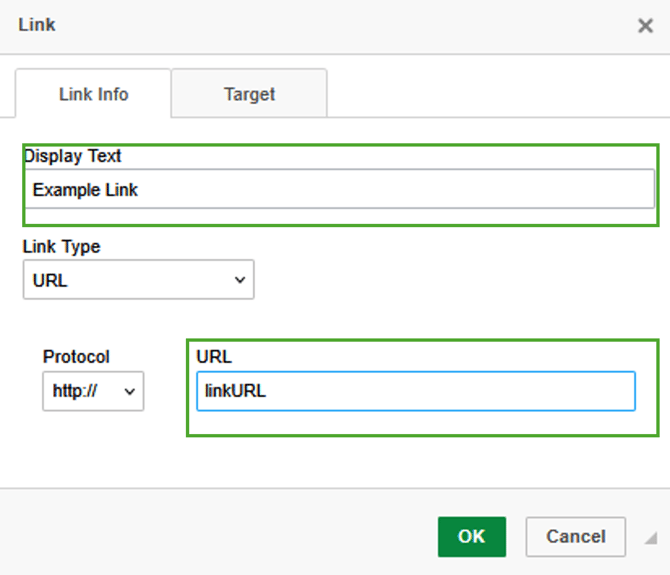
- Once all the details have been entered, select "OK".
- Click "+Save" to apply your updates to the page.