![MetisLogo_Filled_Short.png]](https://www.metis.support/hs-fs/hubfs/MetisLogo_Filled_Short.png?height=50&name=MetisLogo_Filled_Short.png)
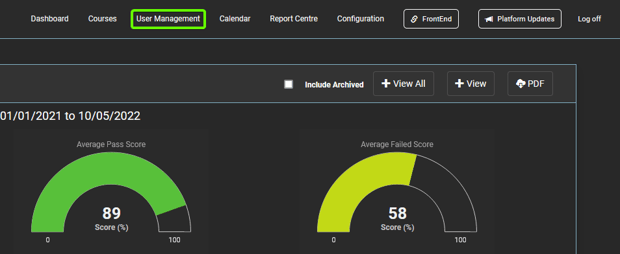
1. After logging in to your "Administration" site, select the "User Management" tab.
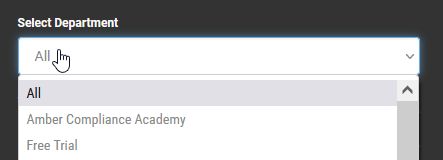
3. Select the department from the dropdown list in the navigation that you wish to assign a course to. Alternatively, if you are looking to assign to all on your platform, leave the "Select Department" filter as "All".
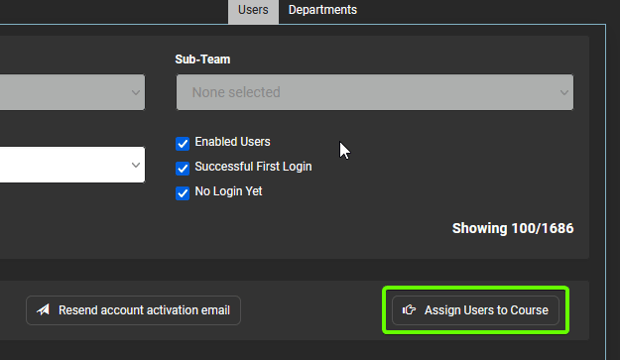
4. Select "Assign new Course" located at below the top navigation.
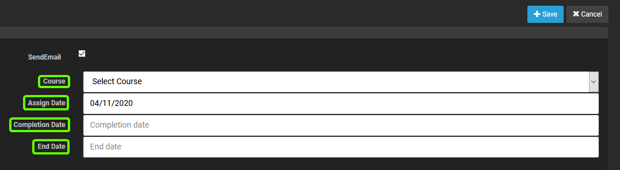
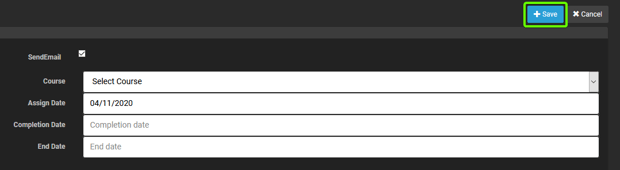
4. You will need the following details to apply the requested course:
- Course title: Any out of date courses will be marked as "archived", so ensure you have the correct course title.
- Assignment date: This can be set in the future but will be automatically set as the current date.
- Completion date: Set as the date you want the user to complete the course by.
- End date: This is when you want the user's access to the content to stop - this is normally set well in advance so that the user can access content after the completion date has expired.
5. You can remove users from the course assignment by un-ticking them from the user list.

6. Once you have all of the above filled in, select "Save" to assign the course.
7. The platform will send reminders on the run up to the completion date, they will be sent with 5 days remaining and with two days remaining.