![MetisLogo_Filled_Short.png]](https://www.metis.support/hs-fs/hubfs/MetisLogo_Filled_Short.png?height=50&name=MetisLogo_Filled_Short.png)
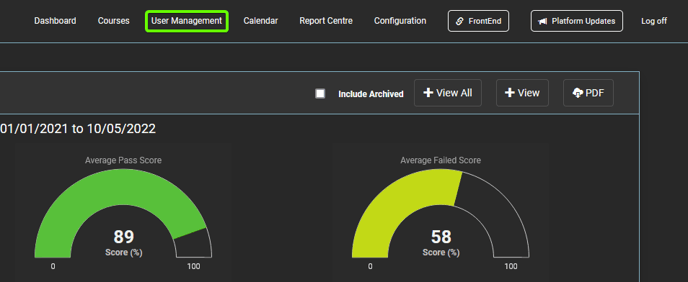
1. After logging in to your "Administration" site, select the "User Management" tab.
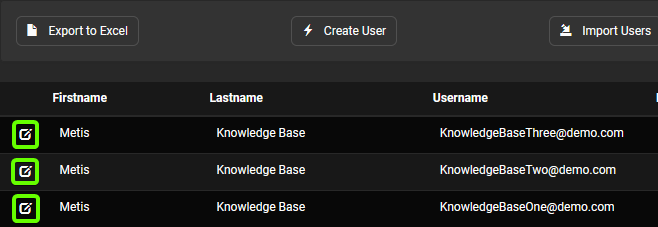
2. Select the user you wish to assign User Administrator rights to.
2a. For guidance on how to add users to the platform, please see the following guide.
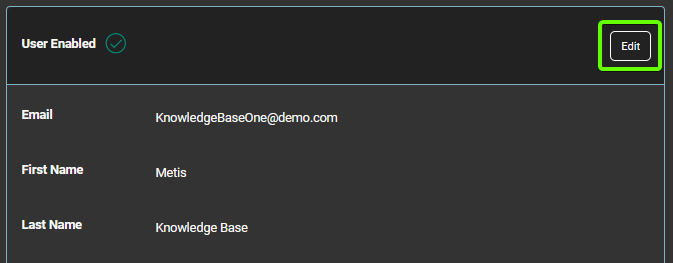
3. Click the "edit" button located in the upper right section of the profile.
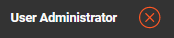
4. Once on the edit profile screen, select the red cross located next to "User Administrator" to turn it into a green tick.
 changes to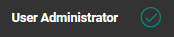
5. To add departments to this profile, select the required departments from the dropdown provided.

5a. For guidance on how to add departments to the platform, please see the following guide.
6. Once you've added departments to this profile, the user will only be able to see content on their Administration portal for their assigned departments. This is for Dashboard, Courses, User Management and Report Centre tabs.