![MetisLogo_Filled_Short.png]](https://www.metis.support/hs-fs/hubfs/MetisLogo_Filled_Short.png?height=50&name=MetisLogo_Filled_Short.png)
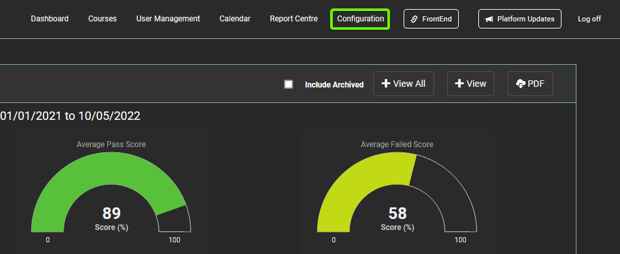
1. After logging into your "Administration" site, select the "Configuration" tab.
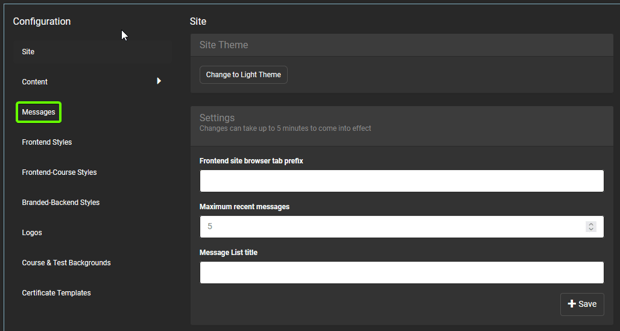
2. Select "Messages" within the side-navigation bar.
3. From here, you can select "Edit" on each message template to make adjustments as required:
- "Brand User Verification" is used as the invite to the platform and is the first email new users will receive.
- "Brand User Assigned to Course" alerts the user that they have been assigned a course. The email contains the name of the course that they have been assigned and the dates that they need to complete the assigned course by.
- "Broadcast to users" is used when you want to broadcast a message to selected users which could be a department or just a single user. This template is basic as the message will be updated by the admin user before the message is sent.
- "FOOTER" appears at the end of every message sent out from the platform, as this is pulled in automatically
- "First Course Reminder" will be sent with five days remaining before the completion date expires
- "Second Course Reminder" will be sent with two days remaining before the completion date expires
4. Always leave the section that states "Click here to log in" as this allows users to directly access your platform using a link in their emails.