![MetisLogo_Filled_Short.png]](https://www.metis.support/hs-fs/hubfs/MetisLogo_Filled_Short.png?height=50&name=MetisLogo_Filled_Short.png)
Please note, This is not a standard feature on your platform.
To get this functionality added to your administration site, please get in touch with your account manager.
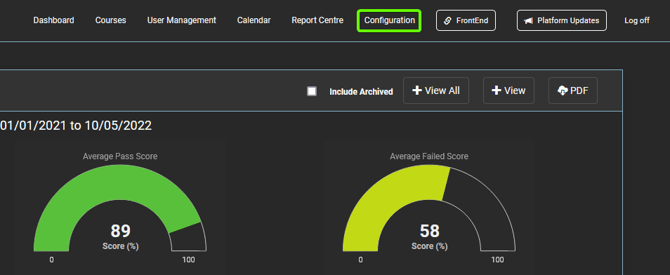
- After logging into the "Administration" site, select the "Configuration" tab.
- Next, select the "CPD Theme" in the sidebar.
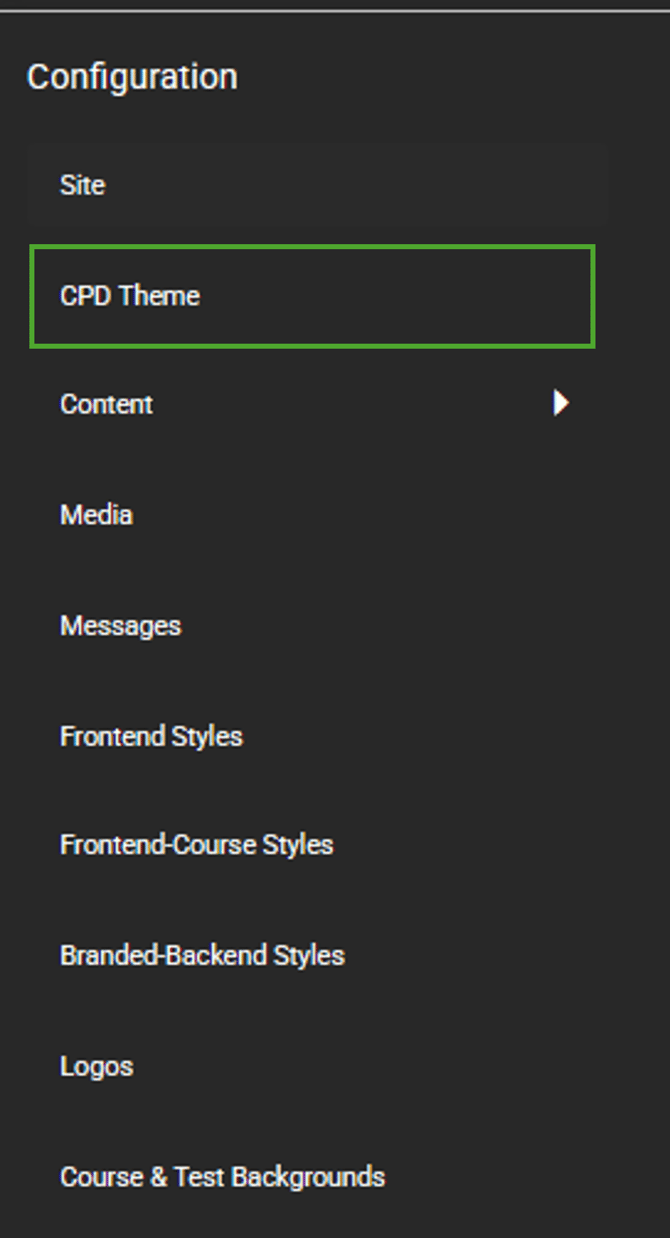
- Here you can select various components of the CPD tracker that you would like to make cosmetic changes to.

-
background-colour: Changes the background where applicable, for any added activity logs.
-
border-colour: Changes the colour of boarders for interactable sections on the CPD tracker.
-
border-radius: Makes the borders in the “Settings” menu have soft rounder edges and if applied, a large number of the edges will force an ovoid shape that will cut into some of the objects. We recommend keeping them for better readability on the site. This will also affect the border on the home page too.
-
border-width: Controls the width of the border surrounding each interactable option.
-
button-fill-colour: Colour of all button backgrounds, this Is usually set to white where it conflicts with most webpage browsers.
-
button-text-colour: Sets the colour of text on many interactable section so the webpage.
-
button-hover-colour: Will set hover over colours for the three buttons at the top of the screen, “Export CSV”, “Export PDF” and “+ Add”.
-
chart-hours-completed-colour: Background colour for all the completed hours that have been marked again a course type.
-
chart-structured-hours-colour: Background colour for remaining structured hours shown on the CPD Tracker.
-
chart-Unstructured-hours-colour: Background colour for remaining unstructured hours shown on the CPD Tracker.
-
snapshot-panel-colour: Changes the background colour for the CPD tracker you would see on the homepage of the site.
-
separator-colour: Changes all on screen borders between content to the provided colour.
-
primary-text-colour: Sets the text colour for a majority of the text on screen.
-
secondary-text-colour: Changes the accompanying text, used to provide descriptions to the users.
-
- When complete, select "+ Save" at the bottom of the screen and wait up to 5 minutes for the change to take affect.
