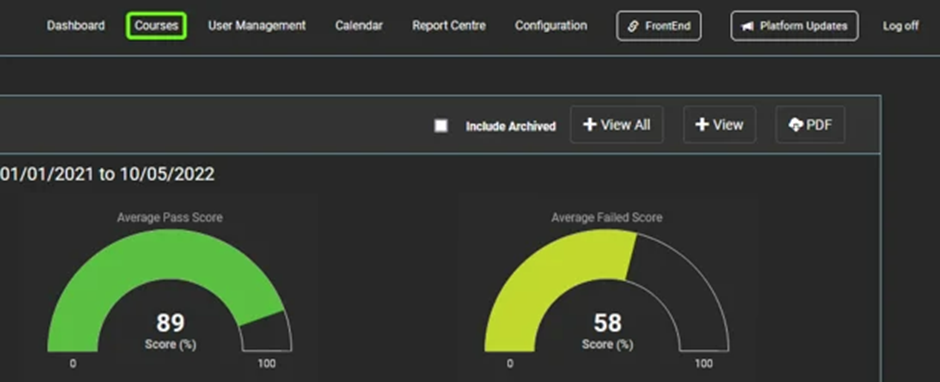
- After logging in to the "Administration" site, select the "Courses" tab.
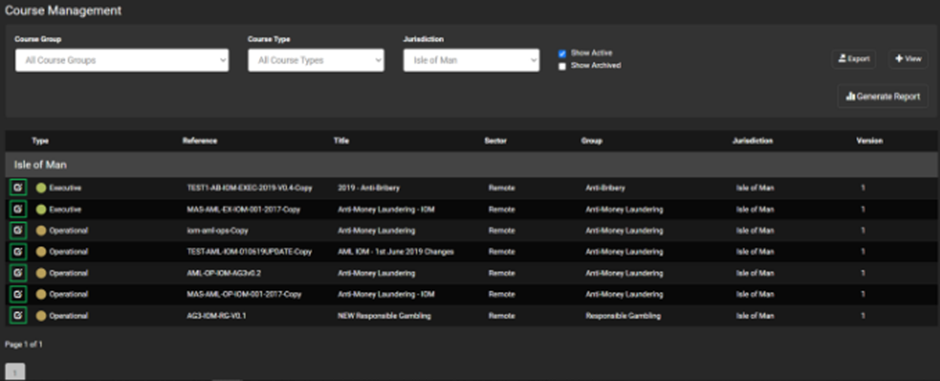
- From here, select the course you want to view.
- After selecting the course, apply any filters necessary and click the "View" button to lock them in.
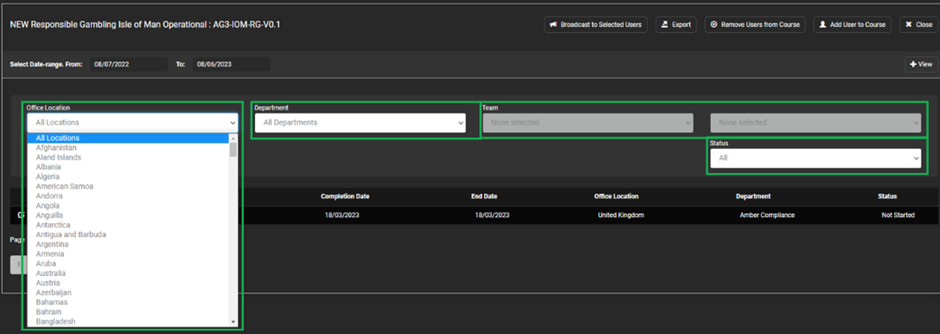
Filter overview
- Office location - A selection of any country that you can create a user under within the application. This will restrict the list to only show users in a given location based on their account details.
- Department - Lists the top-level departments based on the department and sub-team structure present on your site.
- Team - A further breakdown for the department structure, showing sub-teams present on your site.
- Status - Shows completion status of each user for this course using status markers. "Not Passed" is a consolidation of "Not Started", "Started" and "Failed" only showing you the most recent record for the user should there be multiple.
- Date fields - Adjustable date periods to include a course's assignment date across a specific period.
- Once the desired filters are selected, click the "Broadcast to Selected Users" button.

- Format the message you would like to send.
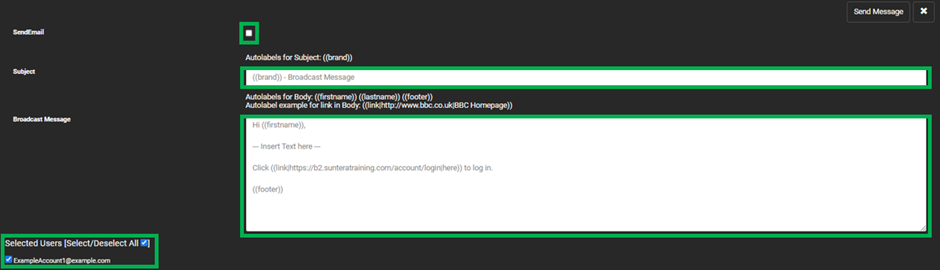
Format Overview
- Send email - Toggleable button that if enabled will email the message to each user selected once sent. If left unticked, that message will only be sent to the academy and show on the "Recent message and email" section of the home page.
- Subject - email subject heading.
- Broadcast Message - The body of the email, the use of auto labels will populate the email with each recipient information such as their names. As an example ((Firstname)) will be replaced with the users first name upon sending out.
- Selected Users - List of the users within your previously applied filters. These users can be excluded from the recipient list by unselecting the users' email.
- Once completed, select "Send Message" to send the email out of the users.
- The below message bar will appear once the message has been sent correctly.

English
![MetisLogo_Filled_Short.png]](https://www.metis.support/hs-fs/hubfs/MetisLogo_Filled_Short.png?height=50&name=MetisLogo_Filled_Short.png)