![MetisLogo_Filled_Short.png]](https://www.metis.support/hs-fs/hubfs/MetisLogo_Filled_Short.png?height=50&name=MetisLogo_Filled_Short.png)
Please note, This is not a standard feature on your platform.
To get this functionality added to your administration site, please get in touch with your account manager.
The CPD tracker is a simple way to track and log your CPD hours. This applies to items completed either through the site or externally. You can add courses which reward CPD minutes and see how many hours you have completed vs how many hours remain.
Please note that the styles and colours seen on the below guides might not reflect what you see on your site. Due to the default settings outlined by your site admin, please use the following link if you would like to customize how it looks.
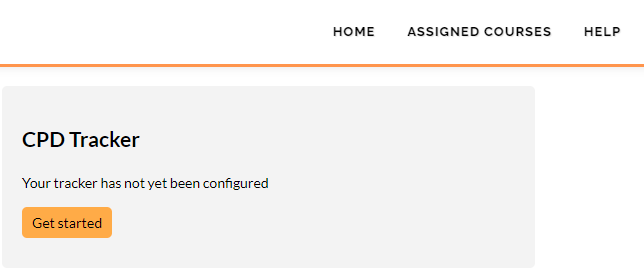
- Select the "Get started" button.
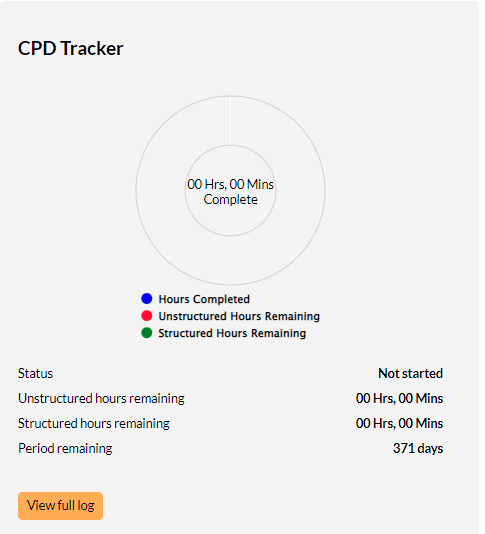
- Select the "View full log" button.
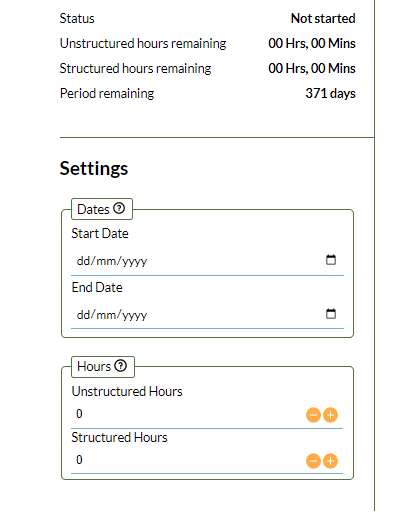
- Through the "Settings" section, configure the amount of Structured and Unstructured training hours you have to complete and the period of time you have to complete them in.
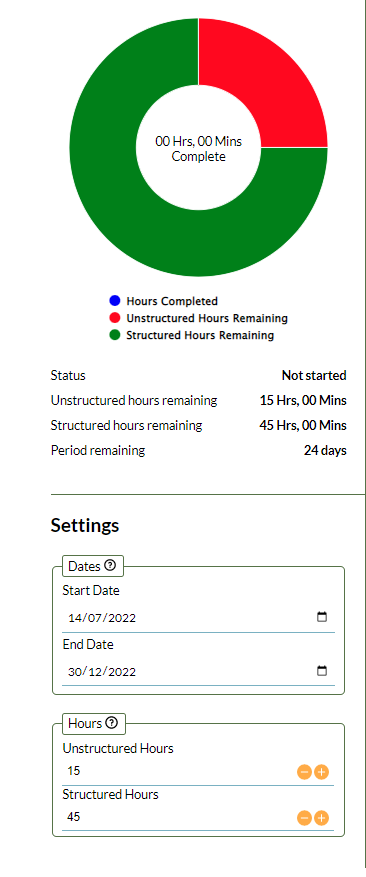
- Once complete, the widget should display a breakdown based on the targeted hours provided.
- To add CPD activity, select the "+Add" button.

- Add all relevant information to each section displayed.
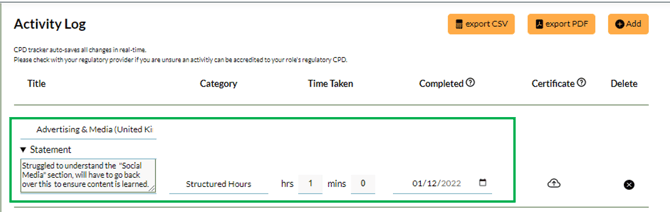
Repeat this process for all CPD activity completed or due to be completed.
As this is an open tool, users are in full control of the information retained. If a line of data is deleted, it cannot be reversed.
To start a new year of CPD activity, users simply need to adjust the date range within the settings. You must update the End Date and then the Start Date otherwise he change will not be stored correctly.
For courses that are delivered through the site, CPD minutes must be allocated within the course settings for these to pull through automatically within the tracker. Courses that have CPD minutes applied, will appear as displayed below. Those that do not, will just display the course duration only.